- Vaibhav (VB)
- Posts
- I got asked this about 10 times yesterday
I got asked this about 10 times yesterday

Vaibhav Sridhar
January 26, 2026
Yesterday's Space was pretty wild.
We were talking about AI agents — how AI stops being a chatbot and starts being something that actually does things in your life.
And the same question kept coming up.
"What's MCP?"
"How do I set it up?"
"Do I need to code?"
Like, 10 different people asked some version of this.
So I figured — let me just write about it here.
Here's the thing:
Right now, when you use Claude on the web, you're talking to it through a glass window.
You can have a conversation.
You can ask questions.
But Claude can't actually touch anything in your world.
You have to copy-paste everything.
Upload files manually.
Describe your folder structure.
Tell it what's in your documents.
It's like having a really smart assistant who's locked outside your office. They can give advice through the window — but they can't open your filing cabinet, read your notes, or organize anything for you.
MCP changes that.
MCP stands for Model Context Protocol. But forget the technical name.
Think of it like this:
MCP is the USB-C port for AI.
Before USB-C, you needed different cables for everything. One for your phone, one for your camera, one for your hard drive. A mess.
USB-C said — one standard port, works with everything.
MCP does the same thing for AI. It's a standard way for Claude to plug into your actual systems — your files, your Google Drive, your Notion, your databases.
One protocol, works with everything.
What this actually means for you:
Without MCP — you tell Claude stuff, Claude gives advice, you do the work yourself.
With MCP — Claude sees your actual files.
Claude reads your actual documents. Claude can help you in context, not in theory.
That's the shift from AI as advisor to AI as assistant who's actually in the room with you.
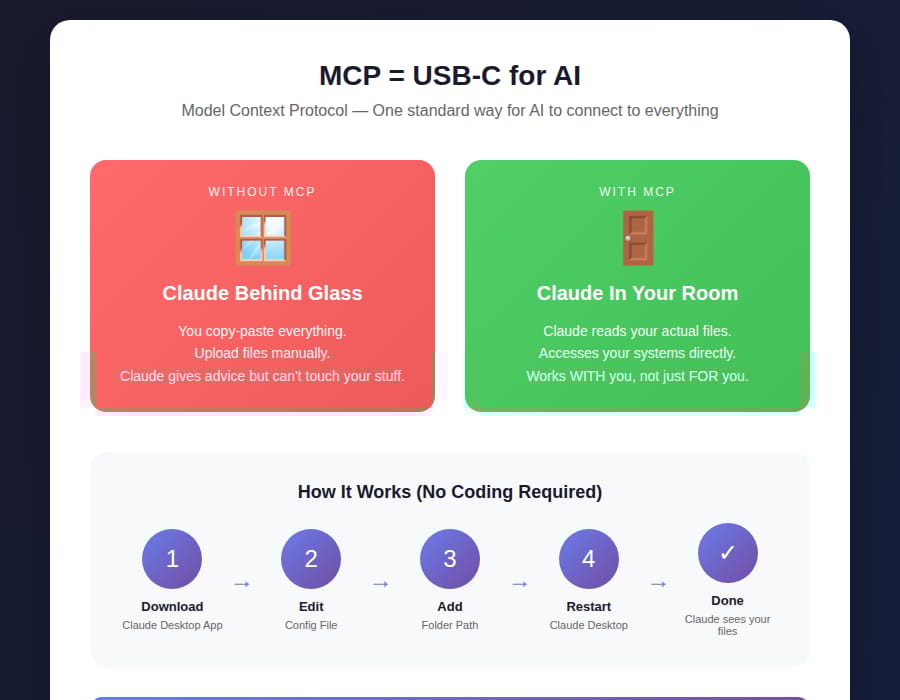
How to set this up (no coding required):
Here's the simplest way to get started.
We're going to give Claude access to a folder on your computer.
That's it. No APIs, no coding, no complicated stuff.
Step 1: Download Claude Desktop
Go to claude.ai/download
Install it on your Mac or Windows computer.
This is important — MCP doesn't work in the web browser. You need the desktop app. The browser is the glass window. The desktop app is the door.
Step 2: Find your config file
On Mac: Open Finder, press Cmd+Shift+G, paste this: ~/Library/Application Support/Claude/
On Windows: Press Win+R, paste this: %APPDATA%\Claude\
You'll see a file called claude_desktop_config.json. Open it with any text editor.
Step 3: Add the filesystem server
Replace whatever's in that file with this:
{
  "mcpServers": {
    "filesystem": {
      "command": "npx",
      "args": ["-y", "@modelcontextprotocol/server-filesystem", "/Users/YOURNAME/Documents"]
    }
  }
}
Change /Users/YOURNAME/Documents to whatever folder you want Claude to access. Could be your project folder, your notes folder, whatever.
Step 4: Restart Claude Desktop
Close it completely. Open it again.
Now when you chat with Claude, it can actually see and read files in that folder. You can say "read my notes from yesterday" or "find the document about X" — and Claude will actually look.
(If you come across some error - Just ask GPT/Claude itself. “I did this, but MCP still doesn’t work.” - it will direct you.)
That's it.
No coding. Just a config file and a folder path.
You just gave Claude access to your actual workspace.
It's not behind glass anymore. It's in the room with you.
By the way - this is exactly the kind of stuff we go deep on in my 90-day program, Zero to Something.
Not just "what is AI" but "how do I actually build systems with AI that work for my life and business."
I'm working with 4 more people this month. 90 days. $1,500*.
We build your AI operating system together.
If that sounds like what you need — Email me "ZERO" and let's talk.
Keep building,
Vaibhav